Joel's Computer Project
| Home | www | Parts | www | Assembly | www | Setup |
| Step 1 BIOS Settings |
www | Step 2 Operating System |
www | Step 3 Drive Partitions |
www | Step 4 Applications |
Step 3: Partitioning the drives
Before I get into the partitions, I had a final thought on the operating system installation. Before the windows starts, the BIOS is pretty much running the show. It obviously detected all hardware attached to the system and had whatever it needed to make it all work. During the windows install, the BIOS is still pretty much in control. When the install got to the point where windows was then running the show, that's when the video went bad. Windows is (almost) always recognizes new hardware and looks for drivers. It's entirely possible that during the windows install, it prompted me to insert the disc for the video card but I just couldn't read it because I hadn't inserted the disc for the video card install... You get the point.
Between the last step and this one, I unplugged the computer and reconnected and formatted the other two hard drives. How long did it take to partition a 250Gb drive? One hour 35 minutes. All I could do was wait.
OK, on to partitioning the hard drive.
On a previous system, I divided the hard drive into C:, D:, and E: partitions. On the C partition I just installed the operating system, drivers, and any applications that gave me no choice. On the D partition I installed most of my applications and that's where I kept their data files. And the E partition I used for storage and just plain junk. Installing as little as possible on the C partition does a couple of things. First, the computer boots faster. On startup, only the C partition is scanned. The less that's on it, the less it has to scan. All great except I really don't care since I usually just leave the computer running. But the operating system will run faster if there's less clutter and more room for swapping & caching. Also, if things get really messed up, I could reinstall windows or even reformat that partition without really messing up too much other stuff on other partitions.
Well, that's what I did on a previous system and essentially what I'm going to do on this one with one exception. That computer had only one hard drive and this one has three. Instead of making partitions on C, I'm just going to leave it as is and only install the O/S, drivers, and applications that don't let me choose where they get installed. That's the drive I've referred to as hard drive #1, the 36Gb 10,000 RPM Serial ATA drive. The thinking here is that using this drive for as little as possible combined with its speed should make the operating system run as fast as possible. The third hard drive is a leftover IDE drive from my last computer that I'm going to use just for storing backups. I won't bother to partition this one either. Also, I'll be curious to see if this drive slows down the system at all cuz of its age and type. If not, it'll be fine if this drive itself is slow, just so long as it doesn't bog down the rest of the system. If it does, I'll ditch it and do something else for backups.
That just leaves one drive I plan to partition, the one I've referred to as hard drive #2, the 250GB 7500 RPM Serial ATA drive. When I started, I hadn't really planned out how many partitions I wanted to make, but first I had to figure out how I was going to do it.
| First, I checked the windows disc and partition management. If I read this stuff correctly, it seems that adding or resizing partitions could wipe stuff out on existing partitions. Obviously I don't don't want that to happen. Using FDISK could do the same thing. In the past I've used a program called Partition Magic. It was pretty dynamic, letting me resize, add, and delete partitions without affecting existing partitions. Unfortuately, I couldn't reuse the version I had. It didn't say anything about Windows XP, but in its help file it mentions that it supports hard drives up to 80Gb. Since the drive I want to partition is 250Gb, I'll have to use something else. | |
| I was hoping to just get the latest version of Partition Magic, but didn't feel like driving all the way to CompUSA or waiting for something in the mail. I got a program called Partition Commander cuz that's what I found at Staples. It came with something called System Commander which I didn't want, but it seemed to automatically install with the thing I wanted. System Commander seems to be a utility to have multiple operating systems on the same computer. After I installed it, it prompted me to select an operating system each time the computer restarted. Since I only have one and don't plan to install another, this was really annoying. After about 5 tries, I figured out how to disable it. | |
| It took a few tries but I eventually figured out how to work this program. This is a picture of the first drive, which I won't be dividing up. | 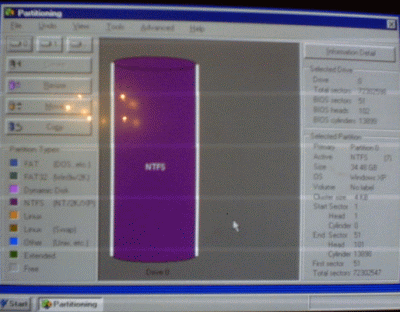 |
| Again, it took a few tries but I'm starting to get how to work this program. I started slow and made just two 5 Gb partitions on hard drive #2 just to see if I was getting it right. In this program, it doesn't assign the drive letters. It just makes the partitions. The drive letters get assigned by windows, when it restarts. | 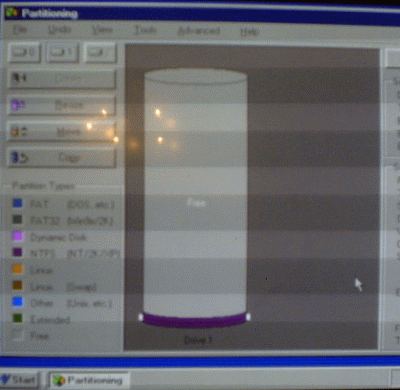 |
| Here's how 'My Computer' looked when I restarted windows. I know it's hard to see, but under 'Hard Disk Drives,' it now has C:, F:, and G: hard drives. D: and E: are the DVD drives. This took a couple of tries also. I wanted it this way so they wouldn't get reassigned if I change the partition info. | 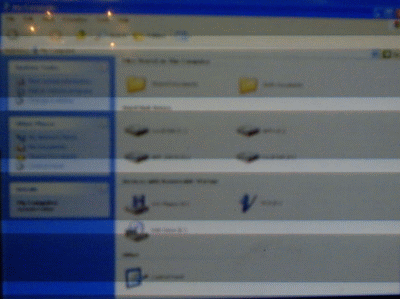 |
After that, I made a bunch more partitions...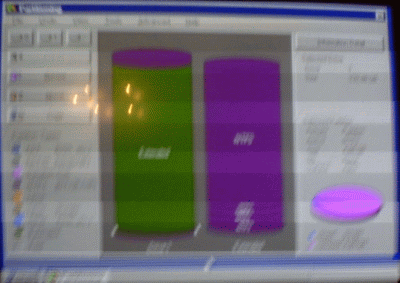 |
...maybe too many.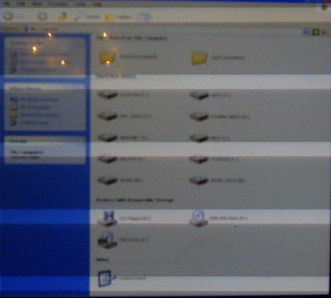 |
Now, it's just a matter of installing all my applications. I'm not entirely thrilled with this partition utility so I'm going to back up everything I can as I go along. That way, if I have to start over, I have everything for as easy a re-install as possible.
| E
Step 2 Operating System |
Setup | Step 4
F Applications |