
Joel's Computer Project
| Home | www | Parts | www | Assembly | www | Setup |
| Step 1 BIOS Settings |
www | Step 2 Operating System |
www | Step 3 Drive Partitions |
www | Step 4 Applications |
Step 1: BIOS Settings
Before doing anything in the BIOS, I skimmed the manual just to be safe. I knew this was the one thing I could mess up in a way that I might not be able to fix. Also, the first time I booted up the system, I did so without the drive cage stuff connected. It's all connected now which you'll be able to see in the screen shots, but I had nothing attached the first time.
The manual said to hit the 'delete' key to get into the BIOS so I hit the power switch and hoped for the best. The startup screen also said to hit the 'delete' key.
That brought me to the main screen.
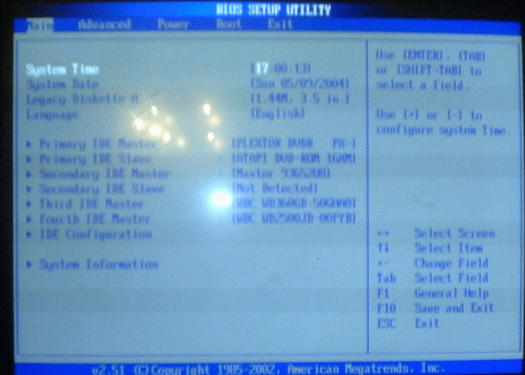
OK, we have time, date, and language, all okay. Next I can check and see that it has correctly identified all the drives, the floppy drive, both DVD drives, and all three hard drives. Also, notice the right side of the screen has instructions for navigating my way through these setup screens. I wasn't sure what IDE configuration was so I checked it out.
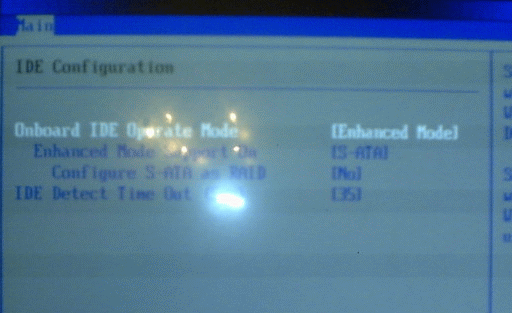 |
It turned out to be about using the Serial ATA headers for RAID drives and a couple of other settings I didn't change. |
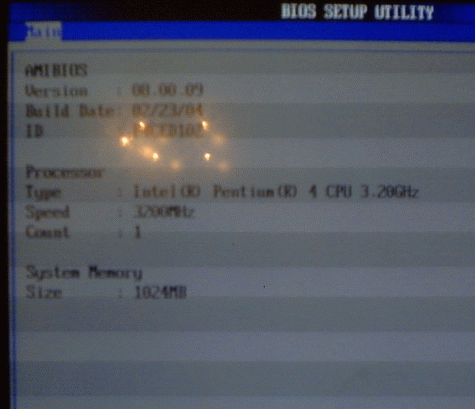 |
'System Information' turned out to be exactly what it sounded like. It just listed the BIOS version and some of the hardware I had just installed (CPU & Memory). |
|
I was pretty much done there since there really wasn't much to do. Then I moved to the 'Advanced" menu. The first selection there was 'jumper free configuration.' I looked at this one but didn't make any changes. I'm not sure if these were the default settings or if it somehow configured itself to the actual jumper settings. My guess is default since I ended up leaving all the jumpers in their default positions. So, I moved on to 'CPU Configuration.' |
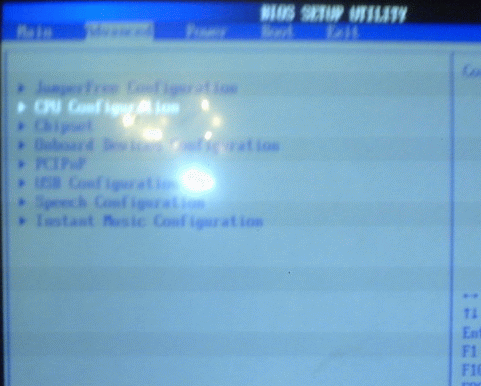 |
| All there was to do here was to enable hyperthreading then get out. | 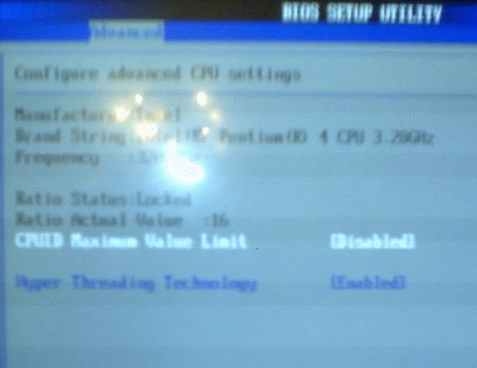 |
| I looked at the chipset menu but there wasn't anything there I needed to do, so I went to the next one, 'Onboard Device Configuration.' This menu was pretty self-explanatory. I enabled the onboard audio, lan, firewire, & usb, disabled the promise controller (RAID stuff) and game port, and left the serial & parallel ports at their defaults. | 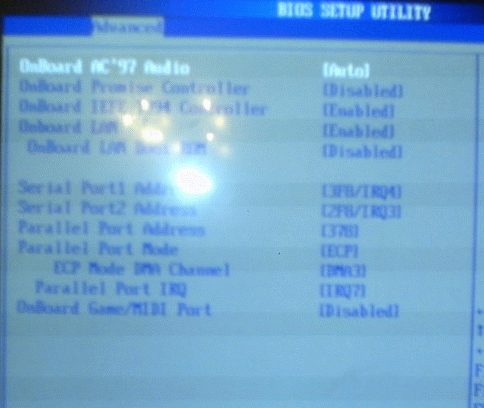 |
There was only one other thing I bothered with in the 'advanced menu' and that was 'speech configuration' but I didn't take a picture of it. It was an enable or disable for audible alarm codes. I found them annoying since I have a CPU fan error in my startup since my CPU fan is plugged into that fan controller instead of it's port on the motherboard. Another thing about this is the PC speaker that came with the case. That speaker beeps when the system starts. That speaker's more important than most people realize. Depending on what problem there is, it beeps differently. The motherboard manual has a chart of beep codes. If the computer's really messed up, this could be the only way the computer can communicate with you and tell you what's wrong.
The other stuff in the 'advanced menu' was USB configuration (which I left at default), Plug 'n' Play configuration (default), and some instant music thing which I still don't understand, but left disabled.
| Next up was the 'Power Menu.' I didn't do much here either. |  |
| I left this stuff at its defaults and scrolled down to 'APM Configuration' (advanced power management). Most of these were options to wake up the system, on keyboard, lan, modem, etc. These seem like a lot of the jumper settings I thought were stupid when I was installing the motherboard in the first place. The only settings here I cared about were the power button and ac power loss. I never use 'suspend mode' so I set the power button to on/off. The ac power loss settings were on, off, and last state. I set it to off. Maybe I'll change it to last state if I get a UPS. That was it for this screen. | 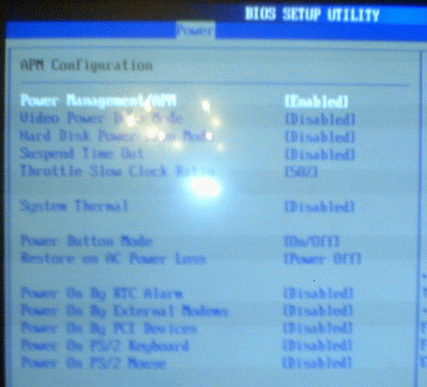 |
| The last one here was the hardware monitor. Here, you can monitor fan speeds, temperatures, and voltages. I'm just using my front panel fan controller for most of this, that's why most of the fan speeds read 'N/A.' I don't have them plugged into the motherboard like the BIOS is expecting. That's also why I get a 'CPU fan error' on startup. | 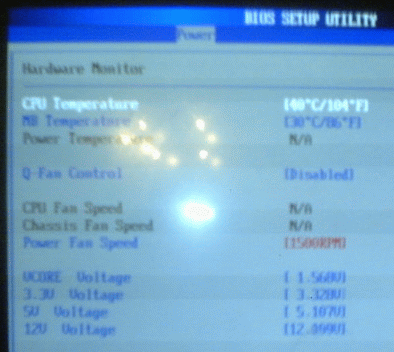 |
| Next up was the 'Boot Menu.' | 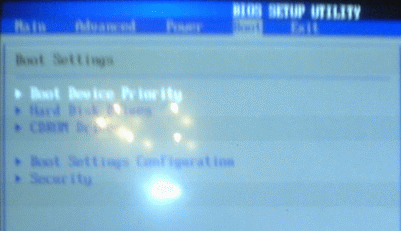 |
The first option here was 'Boot Device Priority' but it turned out I couldn't do that one until I set the other ones first. That'll make more sense in a minute.
| I jumped down to 'Hard Disk Drives.' In the main screen, the BIOS recognized all three hard drives, but had no way to know which one I considered the main one, second, and third. It defaulted to how I had them hooked up, but that wasn't what I wanted. My old hard drive from my last computer was plugged into an EIDE port, which precedes the first Serial ATA port. But I wanted the drive plugged into the SATA port #1 to be the first drive, SATA port #2 second, and EIDE #2 third, so I set those here. | 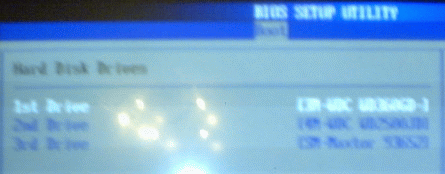 |
| I did pretty much the same thing for the DVD drives. They plugged into EIDE port #1. The DVD-RW is set to master and the regular DVD is slave so the BIOS already had them right. | 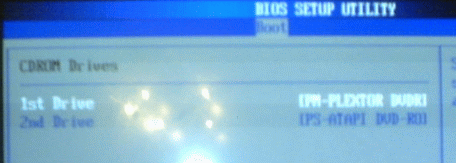 |
| After that, I went back to 'Boot Device Priority.' With the each type of drive, the only available choices are the first drive in each category (there's only one floppy drive.). If I hadn't reordered the hard drives, it would tried to boot to my old transplanted hard drive instead of my new really fast drive, assuming there's no floppy on the floppy drive and no bootable DVD in the DVD-RW drive. Oh yeah, the purpose of these settings are in case I need to boot the computer with a bootable floppy or CD-ROM. Some people prefer the CD/DVD drive to be first, then the floppy, but I like it this way cuz I can see if there's a disk there a lot easier and it's easier to get past if I miss it. |  |
|
That leaves 'Boot Settings Configuration.' I disabled 'quick boot' for now so I can see what's happening as it powers up and so it won't skip any of its tests. When I'm sure everything's how I want it, I can enable this so the computer boots faster. Next was 'show full screen logo.' This is just a splash screen for the motherboard's manufacturer. Fine, but again, I want to see what's happening. I can always enable it later. I didn't understand the next one (add on Rom display mode) so I just left it how it was. 'Num-Lock,' 'PS/2 Mouse Support,' and 'Typematic Rate' were pretty obvious so I enabled those. I set the next one 'wait for F1...' to enabled so the system won't skip by any important errors without me paying attention. 'Hit del message' in case I forget how to get into the BIOS (duh). I wan't sure about the last one so I just left it. The last thing in the boot menu was security, which I skipped. |
 |
| Finally, the exit menu. Very few choices here. Save & exit, discard & exit, discard & continue, and reset defaults. I saved and exited. |  |
 |
| After that, the system rebooted, loaded its settings, and waited for me to install an operating system. |  |
| Setup | Step 2
F Operating System |