Joel's Computer Project
| Home | www | Parts | www | Assembly | www | Setup |
| Step 1 BIOS Settings |
www | Step 2 Operating System |
www | Step 3 Drive Partitions |
www | Step 4 Applications |
Step 2: Operating System
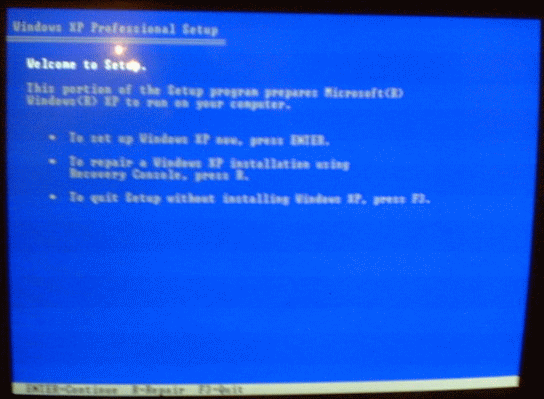
| I put the Windows CD in the DVD-RW drive and rebooted the computer. Since I had set that drive in the boot device priority, the CD started after the BIOS loaded. It said to hit enter to install windows, so I did | |
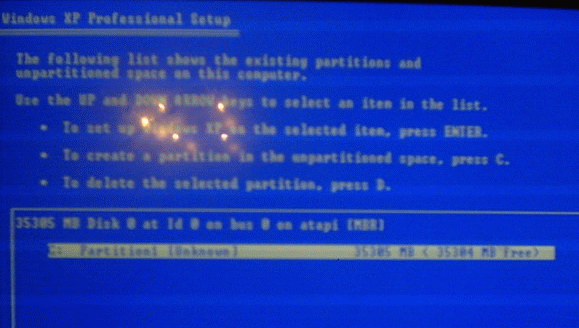
| Just to be sure, before I rebooted, I disconnected the 2nd & 3rd hard drives so the operating system would install to the right drive. It probably would've done it right but I wasn't taking any chances. | |
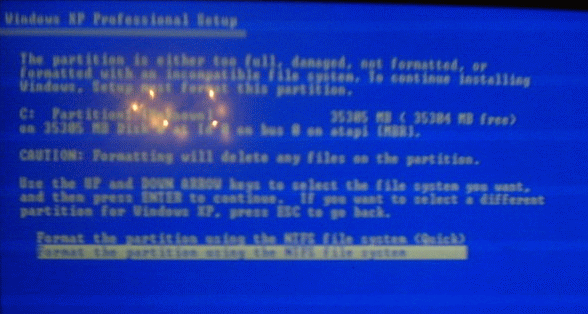
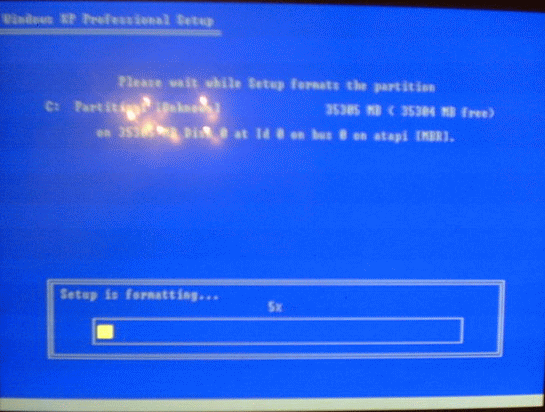
| Since it was a brand new drive, it first had to be formatted. With a brand new drive, I think its better to go for the full, more time consuming format, instead of the quick format. At least for its first format, wait it out. | |
| This only took about 15 minutes. That's really not too long. Even though it's 36Gb, it's a pretty fast drive (10,000 RPM). Compare that to a standard CD-RW which is 650-700Mb. Those can take up to 45 minutes to format. Of course while setup was doing this, it was the only thing the computer was doing at the time. When windows is formatting a CD-RW there are usually a lot of windows things running silently in the background which probably slows it down a bit, but this was still a lot faster than I expected. | |
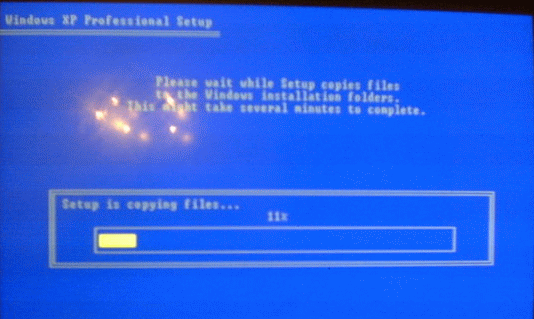
| Once the drive was formatted, setup copied all the necessary files to the drive before windows could start. | |
Windows XP Pro, like any other version of windows, had to load a lot of files to load before it can do much else. After the computer restarts, windows sort of loads. At that point, it looks almost the same as most other setup programs. The big difference is that most other setup programs reqire that windows is already installed.
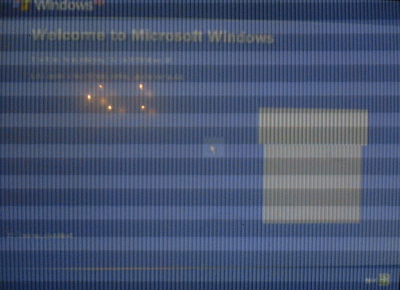
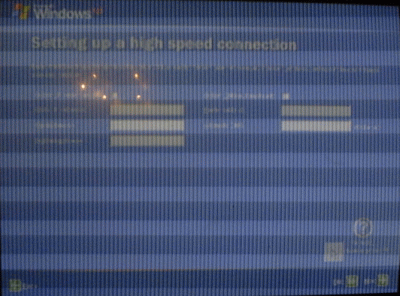
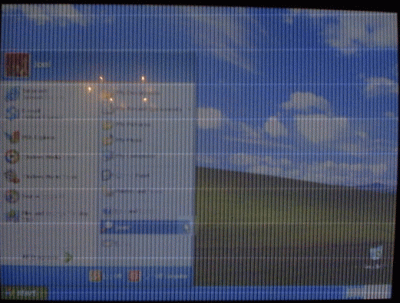
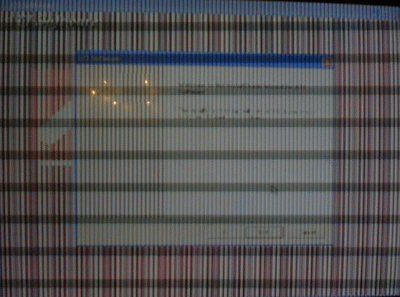
Here's where it got a little weird. Once the operating system was installed enough to do a more windows-like setup, windows sort of started. The problem now is that there's no video driver installed. The horizontal lines in the pictures from the BIOS setup and the beginning of windows setup are the result of me trying to take pictures of a CRT screen. That was fine because at least I could see what was going on, it was just the pictures that were bad. But, now with windows sort of running and no video driver, there were all kinds of lines all over the screen. I saw the same vertical lines on screen you're about to see in the upcoming pix. That made it a little tough to read everything and I wasn't always sure what I was clicking on.
| OK, windows is setting up but as you see, it's hard to make out what's going on. Those vertical lines were actually on screen, not just bad photography. It's got its progress bar, checklist, and little messages, but don't ask me what any of it says. Either I couldn't read it in the first place or I just don't remember. | 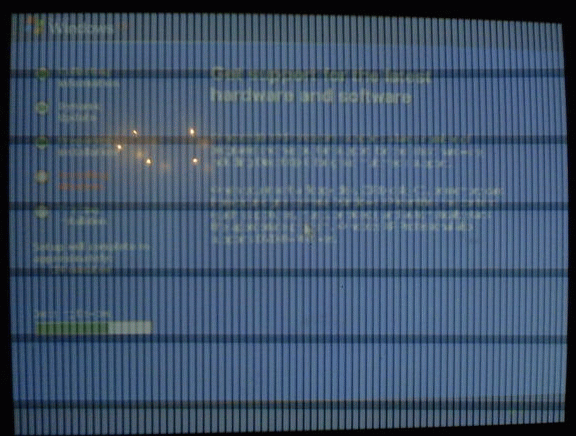 |
| I tried correcting it with the controls on the monitor itself but that didn't do anything. Notice how much clearer the monitor controls are than the image behind it. | 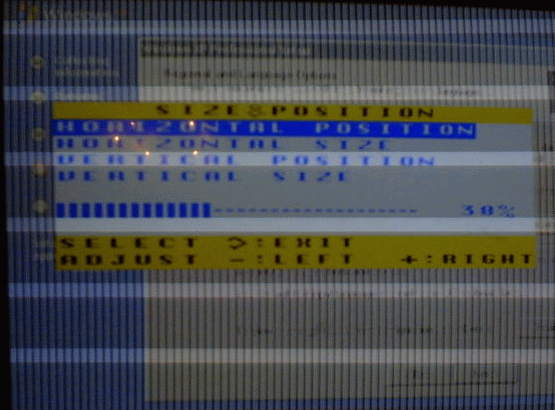 |
| Luckily, I was able to read this one. It wanted the the CD-Key. It's usually on the back of the envelope the CD came in. And luckily I was able to find the 'next' button. |  |
| Well, windows is done setting up but I can't really see what's happening yet. Well, I can see enough but it's still pretty bad. |
 |
 |
 |
| OK, I can't take it anymore. I have to install the video driver. I just popped in the CD and kept clicking whatever looked like an 'OK' button. | 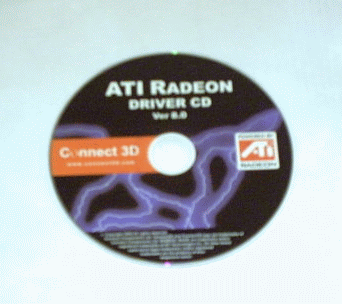 |
 |
 |
| Now the lines are just bad photography. At least at this point I was able to see what I was doing. | 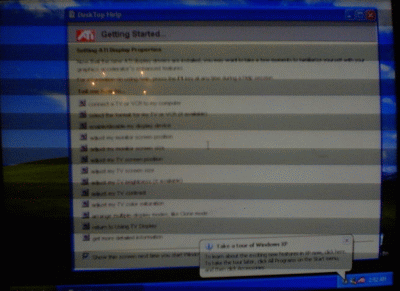 |
| The motherboard came with a disc to install drivers for its onboard components (lan, sound, usb, etc.) | 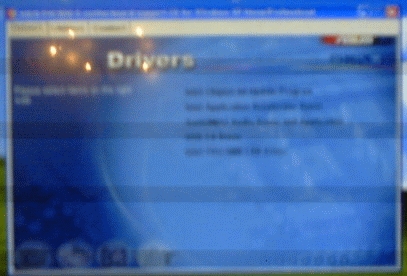 |
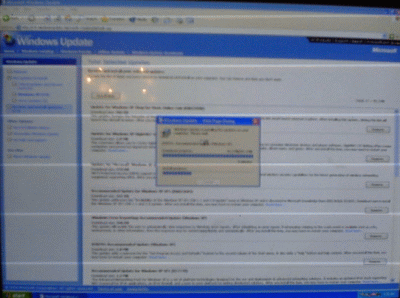
Now that I can see what I'm doing and the lan driver's installed, I was able to get online to get to the windows update site. There were service packs and a bunch of crtical and non-critical updates. This took a while since many of them had to be downloaded and installed one at a time, and most of them required restarting windows. It was easy but time consuming.
 |
 |
Windows is installed and up to date. I didn't take a picture of it but the only other thing I did at this point was install the printer driver. That didn't take long because I had already set up the printer when I installed it with my laptop. So now the computer is pretty much operational. It'll just be a matter of getting it the way I want it.
| E
Step 1 BIOS Configuration |
Setup | Step 3
F Drive Partitions |